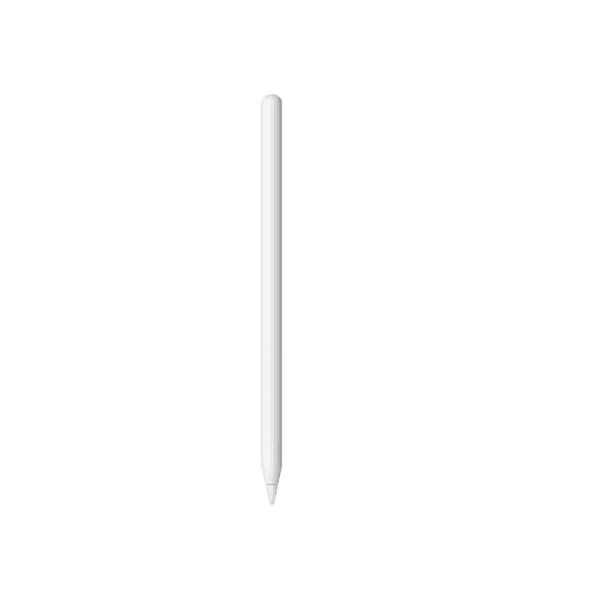
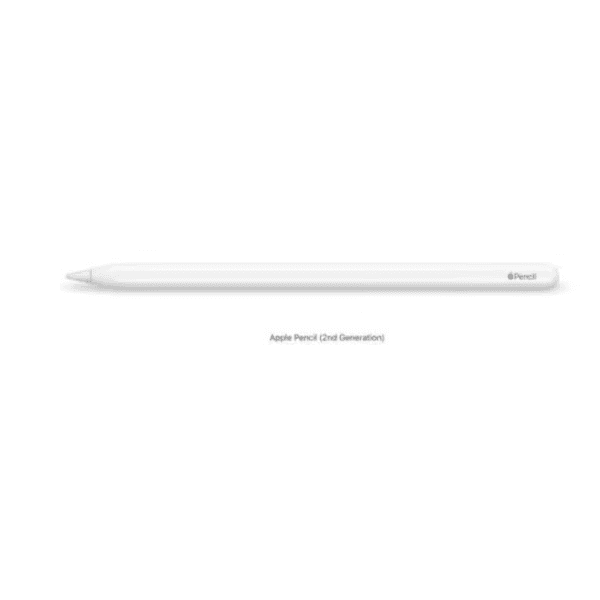
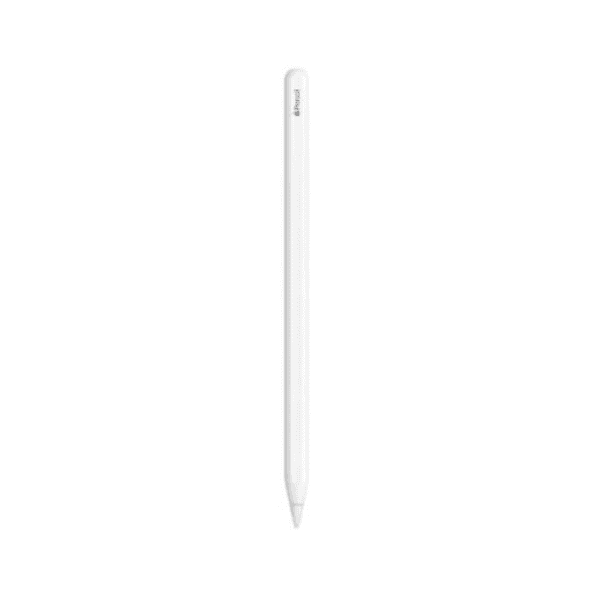
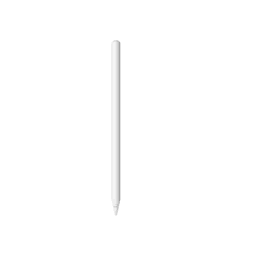
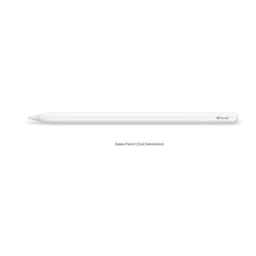
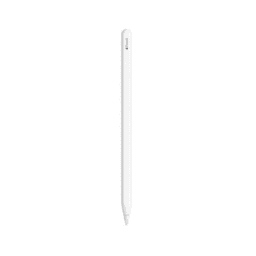
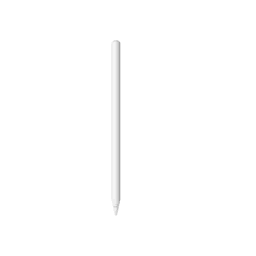
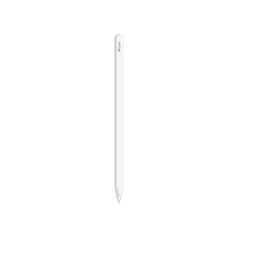
Apple Pencil (2nd Generation) Stylus for iPad White MU8F2

<p data-start="330" data-end="705">Apple Pencil (2nd Generation) (Model MU8F2) delivers pixel-perfect precision and extremely low latency, making it ideal for drawing, sketching, coloring, note-taking, and marking up documents on compatible iPads. It provides a natural writing experience similar to using a traditional pencil while offering advanced digital capabilities for creative and professional tasks.</p> <p data-start="707" data-end="1008">The stylus supports pressure and tilt sensitivity so you can vary line thickness, shading, and drawing styles depending on how you use it. The intuitive touch surface supports double-tap gestures, allowing you to quickly switch between tools such as brush and eraser without putting the pencil down.</p> <p data-start="1010" data-end="1309">Apple Pencil (2nd Generation) magnetically attaches to the side of supported iPads, where it automatically pairs and charges wirelessly. It integrates seamlessly with iPadOS and works with many creative and productivity apps for drawing, annotation, and design.</p> <ul data-start="1334" data-end="1860"> <li data-section-id="kny7ax" data-start="1334" data-end="1401"> <p data-start="1336" data-end="1401">Pixel-perfect precision for drawing, sketching, and note-taking</p> </li> <li data-section-id="zi0q91" data-start="1402" data-end="1465"> <p data-start="1404" data-end="1465">Industry-leading low latency for smooth writing and drawing</p> </li> <li data-section-id="1fgwzmm" data-start="1466" data-end="1527"> <p data-start="1468" data-end="1527">Pressure and tilt sensitivity for natural shading effects</p> </li> <li data-section-id="799m9y" data-start="1528" data-end="1575"> <p data-start="1530" data-end="1575">Double-tap gesture for quick tool switching</p> </li> <li data-section-id="11guolz" data-start="1576" data-end="1634"> <p data-start="1578" data-end="1634">Magnetic attachment for automatic pairing and charging</p> </li> <li data-section-id="1mpd5g0" data-start="1635" data-end="1683"> <p data-start="1637" data-end="1683">Bluetooth connectivity with compatible iPads</p> </li> <li data-section-id="nbr2r2" data-start="1684" data-end="1727"> <p data-start="1686" data-end="1727">Wireless charging when attached to iPad</p> </li> <li data-section-id="1xuxc2e" data-start="1728" data-end="1764"> <p data-start="1730" data-end="1764">Lightweight and ergonomic design</p> </li> <li data-section-id="74u7xn" data-start="1765" data-end="1811"> <p data-start="1767" data-end="1811">Ideal for artists, designers, and students</p> </li> <li data-section-id="13ftolt" data-start="1812" data-end="1860"> <p data-start="1814" data-end="1860">Works with many creative and productivity apps</p> </li> </ul> <p data-section-id="1ma7m6t" data-start="1867" data-end="1882"><strong>Key Features</strong></p> <p data-start="1884" data-end="2016"><strong data-start="1884" data-end="1916">Precision Drawing Technology</strong><br data-start="1916" data-end="1919" /> Supports pressure and tilt sensitivity for accurate strokes, shading, and detailed illustrations.</p> <p data-start="2018" data-end="2140"><strong data-start="2018" data-end="2051">Magnetic Pairing and Charging</strong><br data-start="2051" data-end="2054" /> Attaches magnetically to compatible iPads for automatic pairing and wireless charging.</p> <p data-start="2142" data-end="2241"><strong data-start="2142" data-end="2171">Double-Tap Tool Switching</strong><br data-start="2171" data-end="2174" /> Quickly switch between tools using the built-in double-tap gesture.</p> <p data-start="2243" data-end="2341"><strong data-start="2243" data-end="2270">Low Latency Performance</strong><br data-start="2270" data-end="2273" /> Provides a smooth and responsive experience for writing and drawing.</p> <p data-start="2343" data-end="2448"><strong data-start="2343" data-end="2372">Seamless iPad Integration</strong><br data-start="2372" data-end="2375" /> Works with many iPad creative apps for drawing, editing, and note-taking.</p> <p data-section-id="peqbl9" data-start="2455" data-end="2468"><strong>How to Use</strong></p> <ol data-start="2470" data-end="2763"> <li data-section-id="13gseav" data-start="2470" data-end="2541"> <p data-start="2473" data-end="2541">Attach Apple Pencil magnetically to the side of a compatible iPad.</p> </li> <li data-section-id="adsv2a" data-start="2542" data-end="2592"> <p data-start="2545" data-end="2592">The device automatically pairs via Bluetooth.</p> </li> <li data-section-id="fvvhw5" data-start="2593" data-end="2652"> <p data-start="2596" data-end="2652">Start writing or drawing directly on the iPad display.</p> </li> <li data-section-id="m1xsvh" data-start="2653" data-end="2710"> <p data-start="2656" data-end="2710">Use tilt and pressure to adjust strokes and shading.</p> </li> <li data-section-id="zmqwty" data-start="2711" data-end="2763"> <p data-start="2714" data-end="2763">Double-tap the flat side to change tools quickly.</p> </li> </ol>